
The box arrived on a Tuesday, and by Wednesday night my folding table in the spare bedroom had a new resident. I have been cutting vinyl for about four years. I started on an older Cricut, ran it until the blade housing got fussy, and moved up to the Maker 4 this fall. The machine measures 22.1 inches wide, 7.1 inches deep, and 6.2 inches tall, which matters more than it sounds in a room where that same table is also the wrapping station and the place Ray sets down his coffee. I am not writing this to tell you it changed my life. I am writing the review I wish a friend had handed me before I spent the money.
Here is the short version, since you may not want the long one. The Cricut Maker 4 is a capable machine and I am keeping it. The Fine-Point Blade in the box cuts clean lines through adhesive vinyl and card stock, the 300-plus materials claim holds up for the work most of us actually do, and the bundle means you are not hunting for a blade before your first project. The honest part is this: the Maker 4 is not a shortcut. It is a better tool for someone who already has a workflow. If you are hoping the machine does the thinking, it will end up on the shelf next to the heat press you bought in January and never quite figured out.
The Quick Verdict
A precise, quiet cutter for someone who already has a workflow, and an expensive shelf ornament for someone who does not. Buy it for the repeatable fine-point cuts and the matless materials, not for the idea that it will run anything for you.
Amazon Check Today's Price →See What Actually Ships in the Maker 4 Bundle
The listing carries the included-components list, the sampler contents, and today's price. Read that list before you add anything else to your cart.
Amazon Check Today's Price on Amazon →How I've Used It
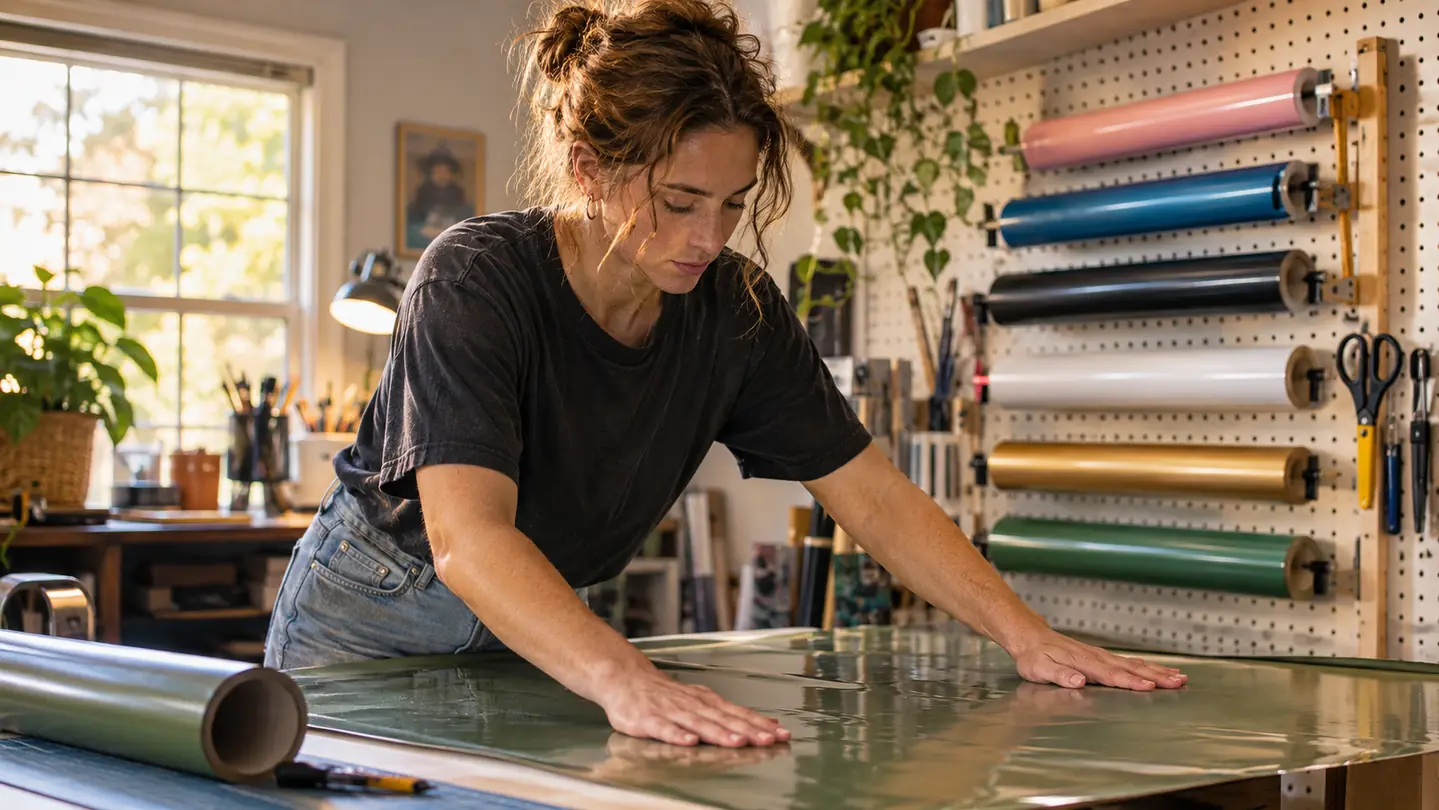
My setup is not a studio. It is one long folding table in a converted spare bedroom, a pegboard on the wall holding vinyl rolls sorted by color family, and a closet shelf stacked with blanks. I sell at a local Saturday craft market a couple of times a month, and I take orders from friends, from church, and from Nia's school teams. Nia is eleven and plays volleyball, so September is a wall of numbers and a lot of late nights. The worst of those nights was the Thursday before the first home game, when I had thirty-one jersey numbers, a set of car window decals for a church fundraiser, and one name banner to get through before the market opened on Saturday. That is the workload this machine has been doing: dozens of small cuts a week, a few big ones a month, and one very nervous attempt at a two-part design for the church banner that I would rather not repeat.
The first thing I noticed is how quiet it is compared to what I had before. The second is that it is consistent. I have cut the same simple decal file more than forty times now, and the blade finds the same path every time, including on the third pass of an evening when my attention is gone and the only thing keeping the work honest is the machine. Consistency is the unglamorous feature that actually decides whether you can take an order on Thursday and deliver it on Saturday morning without redoing half of it.
The third thing I noticed is that the machine is never the slow part. I load a file, send it, and then I stand there weeding tiny letters out of a vinyl sheet while the cutter sits idle and waits for me. If you are new to this, budget for that honestly. The Maker 4 will not weed for you, and nothing at this level will.
What the Listing Doesn't Lead With
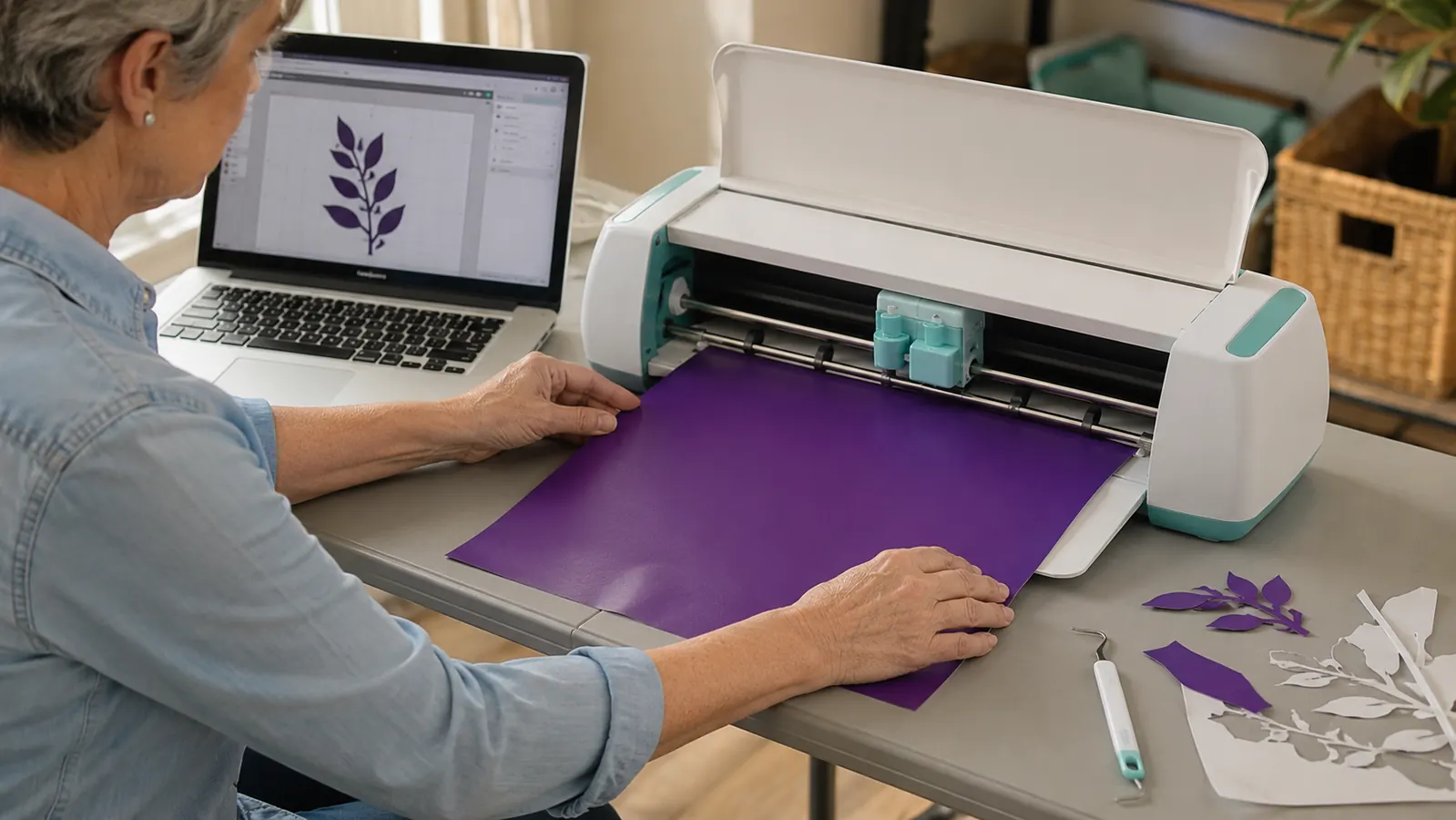
The Maker 4 does not have a screen and it does not design anything on its own. It works with the Design Space app, and the app is where every project starts and, in my experience, where most of the frustration lives. The specifications list compatible devices as the Design Space app and inkjet printers, and that is accurate as far as it goes. What the listing does not say is how much of your time tilts toward the app. When someone tells me their Cricut drove them up a wall, they are almost always describing the software and not the cutting. The machine did what it was told. The software is where the telling gets complicated.
The free content library helps here more than I expected it to. It comes with 3,000-plus images and 100-plus fonts, and for the orders I get, that is close to enough. A volleyball shape, a script number, a plain school mascot silhouette, all of those exist in the library, and pulling one in takes a minute instead of an evening spent learning a design program. I still build custom pieces when a customer wants something specific. But the library is the reason a Thursday night order can be finished on Thursday night instead of sliding into the weekend.
The other thing the listing does not lead with is the footprint. 22.1 inches wide is fine until your table is also holding an ironing board, a box of blanks, and whatever Ray left there on his way through. I had to move the roll storage to the back wall and set the machine close to the front edge so that a long matless cut feeds without bending. A dedicated craft room would not care about any of this. A spare bedroom cares every single day.
None of that is a dealbreaker. But if you are picturing yourself pulling this out of a closet, setting it on the kitchen counter, and putting it away again, measure the counter first. The machine is not heavy in a way that hurts your back. It is just long, and long is the dimension that surprises people.
The machine is never the slow part. I send the file, and then I stand there weeding tiny letters while the cutter waits on me.
The 300 Material Claim, and What It Means at the Table
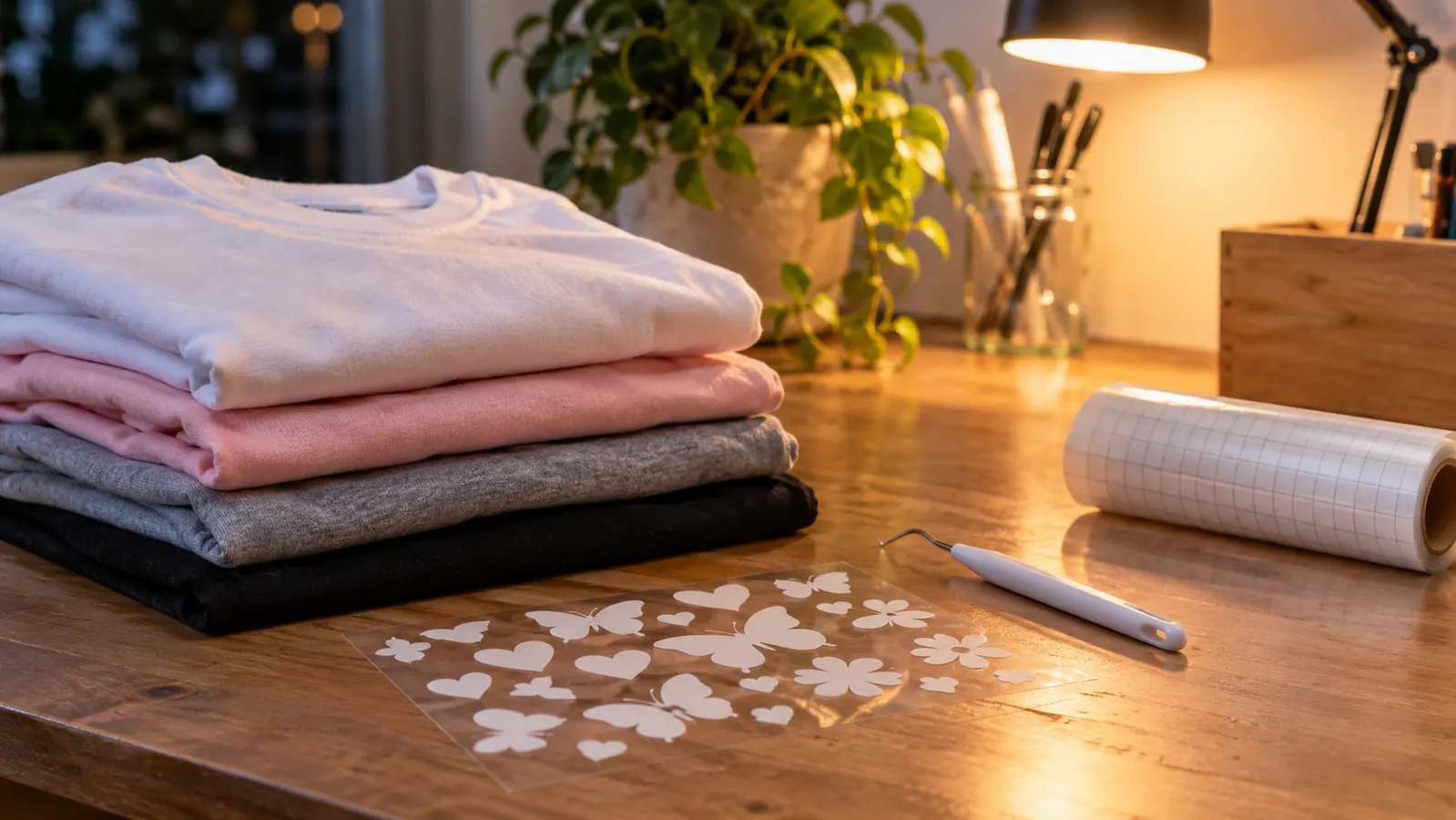
The specification sheet says 300-plus materials and names leather, wood, vinyl, and iron-on among them. The bundle ships with a Fine-Point Blade and a materials sampler covering Smart Vinyl, Matless Vinyl, Smart Iron-On, and Matless Heat Transfer. That sampler is the most useful thing in the box for a first-week buyer, because it lets you ruin four different surfaces before you commit to a full roll of any of them. I ruined two of mine on purpose, just to see how the blade behaved on each, and I would do it again. The Smart Vinyl sheet came off the backing clean on the first pull. The Matless Heat Transfer went onto a shirt blank that had been sitting in the closet since a project I abandoned, and I pressed it too hot because I was impatient, so the scorch mark on that blank is mine and not the machine's. What I took away is that the blade behaves the same on all four surfaces. The variable is everything that happens after the cut.
Be clear about what the Fine-Point Blade is for, though. It is a detail blade. It handles adhesive vinyl, card stock, and labels, and the listed print media for this machine is card stock and labels, which lines up with what I see at the table. If your plan involves thick leather or wood, plan on buying a different blade as well, and possibly a different machine. I would rather tell you that plainly than have you find out on a Friday night with the market already paid for and forty shirts waiting.
The matless materials are the quiet upgrade, and they are the reason I would pick this over a cheaper cutter. Matless vinyl feeds without a cutting mat, so there is no sticky sheet to peel and re-stick, no edge curling up halfway through a long cut, and no mat that has quietly lost its grip and started dragging the design a sixteenth of an inch off. For forty shirt numbers in a row, that is the difference between finishing before Ray goes to bed and finishing at midnight with the lamp on.
Print-Then-Cut, the Feature I Use Most
The Maker 4 is compatible with an inkjet printer, and Print-Then-Cut lets you print a full-color sheet and then cut precisely around the printed shapes. That is how stickers, labels, and the small character decals that Nia's friends ask for get made. It is listed plainly in the specifications under print media, and it is the reason I have not gone out and bought a separate sticker machine. If you already own an inkjet, you are one step from a product line you did not have last month.
The catch is that your printer is doing half the work, and it is your printer. I print on card stock and the colors come out a little flatter than they look on the screen, so I have learned to choose designs that do not depend on a deep black or a soft gradient. The cutter does its part perfectly. The ink is the weak link, and it is your ink, not Cricut's, which means no amount of reading the listing will tell you how yours will look. Print one test sheet before you promise a customer anything.
The First Two Weeks, Honestly
The first week is slower than you think it will be, and that is not the machine's fault. You will spend an afternoon learning where things live in the Design Space app, and you will make at least one project where the design comes out mirrored or an inch too small because you sized it by eye instead of typing a number. I did both. The mirrored one was a set of name decals for a friend's daughter, and I did not catch it until the whole sheet was weeded and I went to apply it, which cost me an hour and a half and a second cut. The small one was worse, because it looked right until I set it next to the bowl it was meant to go on. I also cut a sheet of vinyl with the wrong side up, which is a mistake you make exactly once because the material tells you immediately.
The second week is where it turns. Once you have three or four files you trust, the work stops being about the machine and starts being about batching. I cut all of one color at once, then all of another, then weed everything sitting down with a good lamp. That rhythm is not in any documentation. It came from watching Ray press shirts in the wrong order one Saturday and realizing I was doing the same thing with vinyl. By the end of that week I had four files I trusted completely: a volleyball number, a script name, a school mascot silhouette pulled straight from the library, and a small sticker Nia asked for. That was enough to stop dreading Thursday.
Where the Maker 4 Fights You
The active surface area is 270.25 square inches, which sounds generous until your project is longer than the feed path. I do not take many oversized jobs, but the ones I have taken needed the design split into two cuts and aligned by hand afterward, and alignment by hand is a skill. The machine does not teach it, the listing does not mention it, and the first time you try it you will be off by a visible margin. Practise on scrap before you practise on a customer's banner.
Then there is the width again. 22.1 inches takes real estate, and if you share your table with anything else you will feel it every time you set up. I keep a tape measure on the pegboard now, next to the weeding tools, and I run it along the front edge before any cut longer than a foot. On the long banner I did in October, that front edge had wandered about a quarter inch over the course of the evening because I had stacked a roll of vinyl against the housing and did not notice. I have also learned to check the feed path by hand before a long cut, because a slight bend at the front edge shows up as a wobble in the last third of the design. Two seconds of checking has saved me a lot of material, and material is the one thing on that table I actually pay for by the yard.
One more, and this one is small. The machine is automatic, as the specification sheet says, but automatic is not unattended. I still stand there for the first thirty seconds of every cut. Some of that is a habit carried over from the old machine, and some of it is that I have never once regretted watching the first inch go down.
What I Liked
- The Fine-Point Blade cuts clean, repeatable lines through adhesive vinyl, card stock, and labels
- Bundle includes a four-surface materials sampler, so week one costs you nothing extra in material
- Matless vinyl feeds without a mat, which makes long runs noticeably faster and cleaner
- Print-Then-Cut with an inkjet covers stickers, labels, and small character decals
- 3,000-plus images and 100-plus fonts in the free library cover most school and church orders
- Quiet enough to run in the next room while Ray presses shirts
Where It Falls Short
- No screen and no onboard design, so every project starts in the Design Space app
- Fine-Point Blade only, so thick leather and wood mean another purchase
- Print-Then-Cut output is capped by the quality of your own inkjet printer
- Projects longer than the feed path need splitting and hand alignment
- 22.1 inches of width is a genuine nuisance on a shared folding table
Who This Is For
This is for the person who already sells a little and needs the cutting to stop being the bottleneck. You have a market table or a list of people who order from you, you know what a properly weeded decal looks like, and your current machine has become the thing you wait on. The Maker 4 removes that wait. It is also for the person with an inkjet printer who wants stickers and labels without buying a second machine to make them. And if you are weighing this against the Explore 5, the differences that mattered to me were the material range and the matless feed, not the badge on the front of the housing.
Who Should Skip It
Skip it if you have not yet made twenty things by hand. Skip it if your plan is one shirt for a birthday and then a spot on the closet shelf next to the heat press. Skip it if you are hoping the machine supplies the designs, the customers, or the confidence, because it will not, and the app will feel like a second job by week two. And skip the bundle if you already own a Cricut blade and a shelf of vinyl, because you would be paying for a sampler you do not need.
If the Blade and the Sampler Match What You Actually Cut, This Is the Version to Get
The listing shows the full included-components list, the sampler contents, and today's price. Check it against the materials you plan to work with before you buy.
Amazon Check Today's Price on Amazon →